
How To Convert EPUB Books To Kindle Format
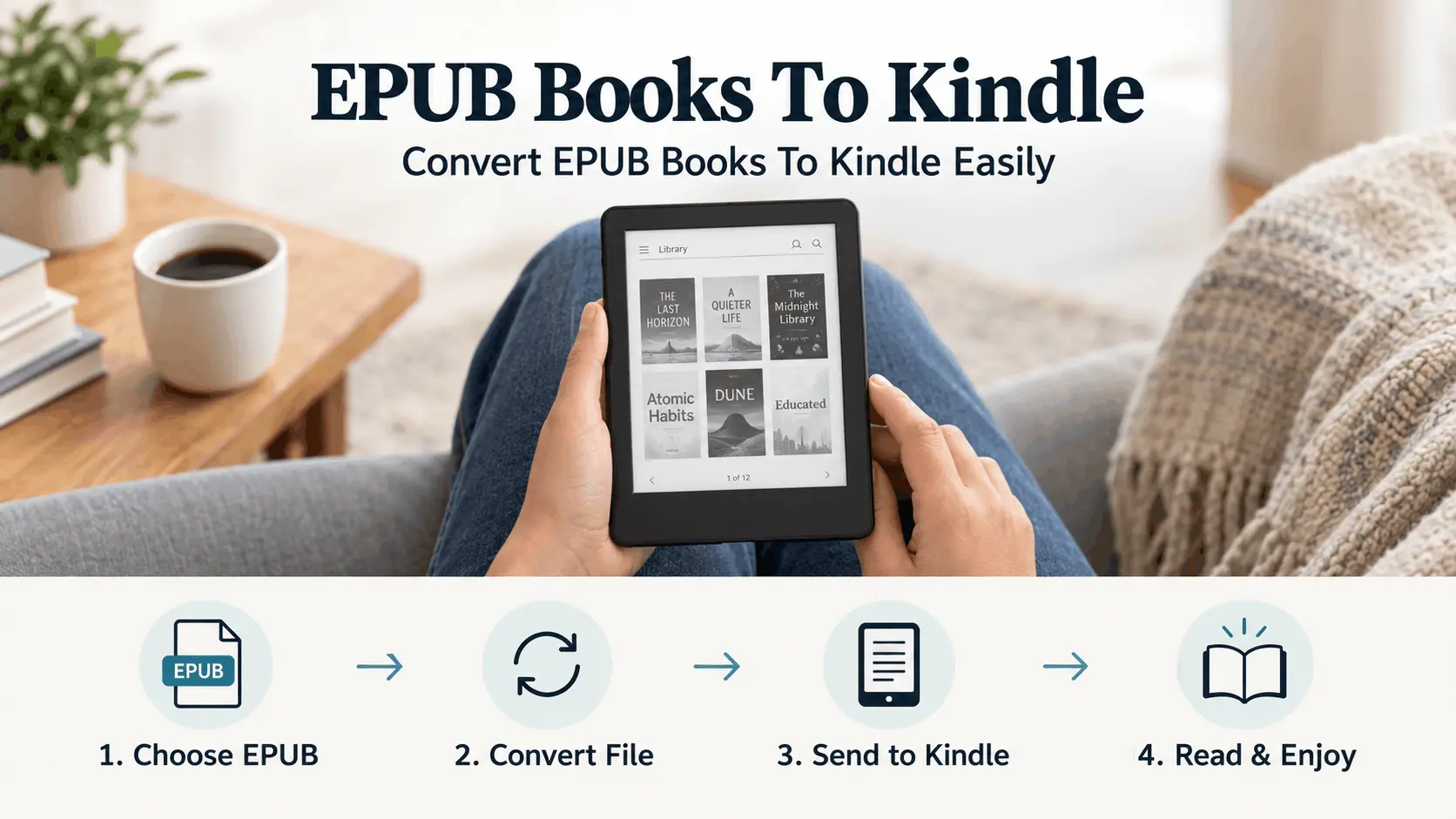
Your manuscript is finished and saved as an EPUB file. Before you upload it anywhere, one question needs a clear answer: does this file need converting before Amazon will accept it, or can you send it as it is? Authors publishing through Kindle Direct Publishing ask this at the exact same stage, usually right after formatting the book and before touching the upload screen.
The confusion comes from older advice. For years, Kindle only worked with MOBI files, so converting EPUB to MOBI was a required step before publishing. That requirement no longer applies, and what actually happens now during upload is worth understanding before you proceed.
Does Amazon Convert Your EPUB Automatically
Yes. When you upload an EPUB file through Kindle Direct Publishing, Amazon’s system handles the process of converting EPUB to Kindle’s internal format during upload. No separate conversion step happens on your end before that.
Amazon Reads And Converts The File
• Reads your EPUB’s structure, chapters, and table of contents
• Converts the file into KFX, the format Kindle devices actually display
• Applies this automatically the moment the file finishes uploading
Your EPUB Still Needs To Be Clean
Amazon’s converter works from what’s already in the file, so formatting choices made earlier in the manuscript carry through to the final Kindle version rather than getting fixed automatically.
How To Upload Your EPUB Through KDP
This is the core of Amazon self publishing for most UK authors. The steps below take you from a finished file to a live Kindle upload.
Set Up Your KDP Account
Sign in at kdp.amazon.com using an existing Amazon account, or create one if you’re starting fresh. You’ll need to add bank and tax details under Account settings before any book can go live, but this only needs doing once, not for every new title.
Create a New Title
From your Bookshelf, select Create, then choose Kindle eBook. Enter your title, series details, and description here. This is where your book’s metadata gets recorded, kept separate from the manuscript file itself.
Upload Your EPUB File
• Go to the Content section of the title setup and select your EPUB file
• Amazon runs the file through its converter automatically at this stage, so you don’t need to convert EPUB to Kindle format yourself here
• Large files can take a few minutes to process, so wait for the upload to finish before continuing
Check It In Kindle Previewer
Once the file processes, KDP opens a preview showing how the book will look on actual Kindle devices. Scroll through several chapters rather than just the opening page, since formatting issues often surface further into the manuscript. If something looks wrong, fix it in your source EPUB and re-upload, rather than editing inside the preview itself.
Should You Check Formatting With Calibre First?
Checking your EPUB before uploading catches problems Amazon’s converter won’t fix on its own. Calibre works as a free EPUB to Kindle converter for previewing layout, so you can see issues before they show up in a live listing.
Install And Import
Download Calibre and open it. Click Add Books, then select your file. The program reads the EPUB’s structure and adds it to your library, ready for the next step.
• Select the file, then convert EPUB file to Kindle-readable AZW3 through the Convert Books option
• Choose AZW3 specifically, since this format matches what Kindle Previewer and most modern Kindle devices actually read
• Click OK and wait for the job indicator in the bottom corner to finish
Preview The Result
Open the converted file directly in Calibre’s built-in viewer, or through a separate Kindle Previewer check. Look at chapter breaks, font rendering, and image placement rather than just the first page, since problems tend to surface a few chapters in.
Fix Before You Upload
Anything that looks wrong here traces back to the source EPUB, not the conversion itself. Correct it in the original file and repeat the conversion, rather than trying to patch the AZW3 output directly. This step is optional, but it’s the closest thing to seeing your book the way a reader will, before it’s live. Used this way, an EPUB converter for Kindle gives you a chance to catch mistakes on your own terms.
What Formatting Issues Does Kindle Flag
Most problems in a converted file trace back to the source EPUB, not to Amazon’s system. Knowing what typically gets flagged before you upload saves a round of re-uploading later.
Font Substitution
Kindle only displays embedded fonts if a reader has turned on Publisher Font in their settings. If that setting is off, or if your EPUB has a font conflict in its styling, Kindle switches to its own default font instead. Include both regular and bold weights, and check that your font license actually allows embedding.
EPUB Version Matters
EPUB 3 is the version KDP handles most reliably. It builds a cleaner table of contents and supports better accessibility than EPUB 2. Older EPUB 2 files with an NCX still convert, but they carry a higher chance of small structural issues showing up after conversion.
| Issue | What Causes It | Fix |
| Fonts not displaying | Publisher Font setting off, or CSS conflict | Embed both weights, check license |
| Table of contents errors | EPUB 2 with outdated NCX structure | Rebuild in EPUB 3 |
| Large file size | Uncompressed images, oversized fonts | Compress before uploading |
File Size And Royalty Cost
Delivery fees on the 70% royalty option are charged per megabyte, so a bloated file costs more every time it sells. Keeping the file under roughly 2MB where possible avoids this quietly eating into royalties.
DRM Will Get Your File Rejected
If the EPUB carries digital rights management from somewhere else, Amazon’s converter won’t accept it. This mostly affects files pulled from another store rather than ones written from scratch, but it’s worth checking before upload.
Most convert EPUB kindle formatting problems come down to these four things, and all of them are fixable in the source file rather than in Kindle itself.
Self-Publishing Or A UK Book Publisher
Both routes get your book onto Kindle. The difference is who controls formatting, timelines, and the final say on your file, not whether Kindle accepts it.
Going It Alone
Self-publishing through KDP means you handle the EPUB, the cover, the metadata, and the upload yourself. Amazon takes a cut through the royalty structure, but there’s no submission process to wait on, and changes to the file are yours to make whenever needed.
Working With A Publisher
Going through one of the established book publishers UK authors use for traditional or hybrid deals shifts that work elsewhere. The publisher typically handles formatting, submits the file to Kindle on your behalf, and manages the metadata through their own account rather than yours.
- Self-publishing gives you full control over the file and timing
- A publisher takes on the formatting and submission work, but you lose direct access to the upload process
- Either route still runs through the same Kindle conversion system described earlier in this guide
What Stays The Same
Whether you or a publisher handles the upload, the process to convert EPUB to Amazon Kindle format runs through Amazon’s own system either way. A publisher catching a font issue before submission saves the same problem a self-published author would need to fix themselves.
What Happens After Your Book Goes Live
Publishing the file is only the first half. Once you convert EPUB file to Kindle format and get past the upload stage, what you do in the days after decides whether anyone actually finds the book on Kindle.
Set Your Price
KDP gives you two royalty options, 35% or 70%, and the 70% tier only applies within a set price range. Pricing too low or too high can push you into the lower royalty band without you noticing, so check the range before publishing rather than after.
Choose The Right Categories
Amazon lets you pick specific categories and keywords during setup. Picking narrower, more accurate categories puts your book in front of readers already searching that shelf, rather than getting buried in a broad one with thousands of titles.
Write A Description That Sells
This is where how to sell your eBook actually starts. The book description is the first thing a reader sees before deciding to buy, so it needs to say what the book is about clearly, not just tease at it.
• Lead with what the reader gets from the book, not a vague hook
• Keep it scannable, short paragraphs rather than one dense block
• Update it later if it’s not converting. This section isn’t fixed once published
FAQs
1- Can I convert EPUB to Kindle format?
Yes. If you’re publishing through KDP, Amazon converts the file automatically during upload. No separate step needed. If you’re loading a personal EPUB onto your own Kindle, the Send to Kindle tool handles the same conversion for free.
2- Is EPUB a good format for Kindle?
Yes. Amazon’s servers convert EPUB files automatically when you upload them, and EPUB 3 in particular gives the most reliable conversion result, better table of contents structure, and stronger accessibility support than older formats.
3- What’s the best free tool to check formatting before publishing?
Calibre is the most commonly used option. It converts EPUB files to AZW3 for preview, handles nearly any input format, and lets you catch layout or metadata issues before the file goes live on Kindle.
4- Can you convert EPUB to Kindle format without extra software?
Yes, through Amazon’s own tools. KDP handles it during publishing, and Send to Kindle handles it for personal files, both without installing anything. Software like Calibre is only needed if you want to preview or adjust formatting first.
5- Why does Amazon reject an EPUB file?
The most common causes are DRM protection, corrupted metadata, a missing language tag, or a file that exceeds the size limit. Running the file through Calibre’s built-in check tool before uploading catches most of these early.
Final Thoughts
Converting an EPUB for Kindle isn’t something you handle manually. Amazon converts the file automatically during upload, whether through KDP or Send to Kindle. What matters is the source file’s quality, its formatting, font embedding, and size. Checking it with Calibre beforehand catches problems early. Once that’s settled, focus shifts to pricing, categories, and a clear description that gives readers a reason to buy. Whether you self-publish or work with a UK publisher, getting the file right the first time saves fixes later.